Wake Up and Control a Completely Dead, Powered-Off PC from Anywhere: A Bulletproof Remote Access Setup
I have to step away from my main desktop frequently. As someone who manages complex automation workflows, self-hosted servers, and agentic AI tools, being completely severed from my primary workstation was not an option.
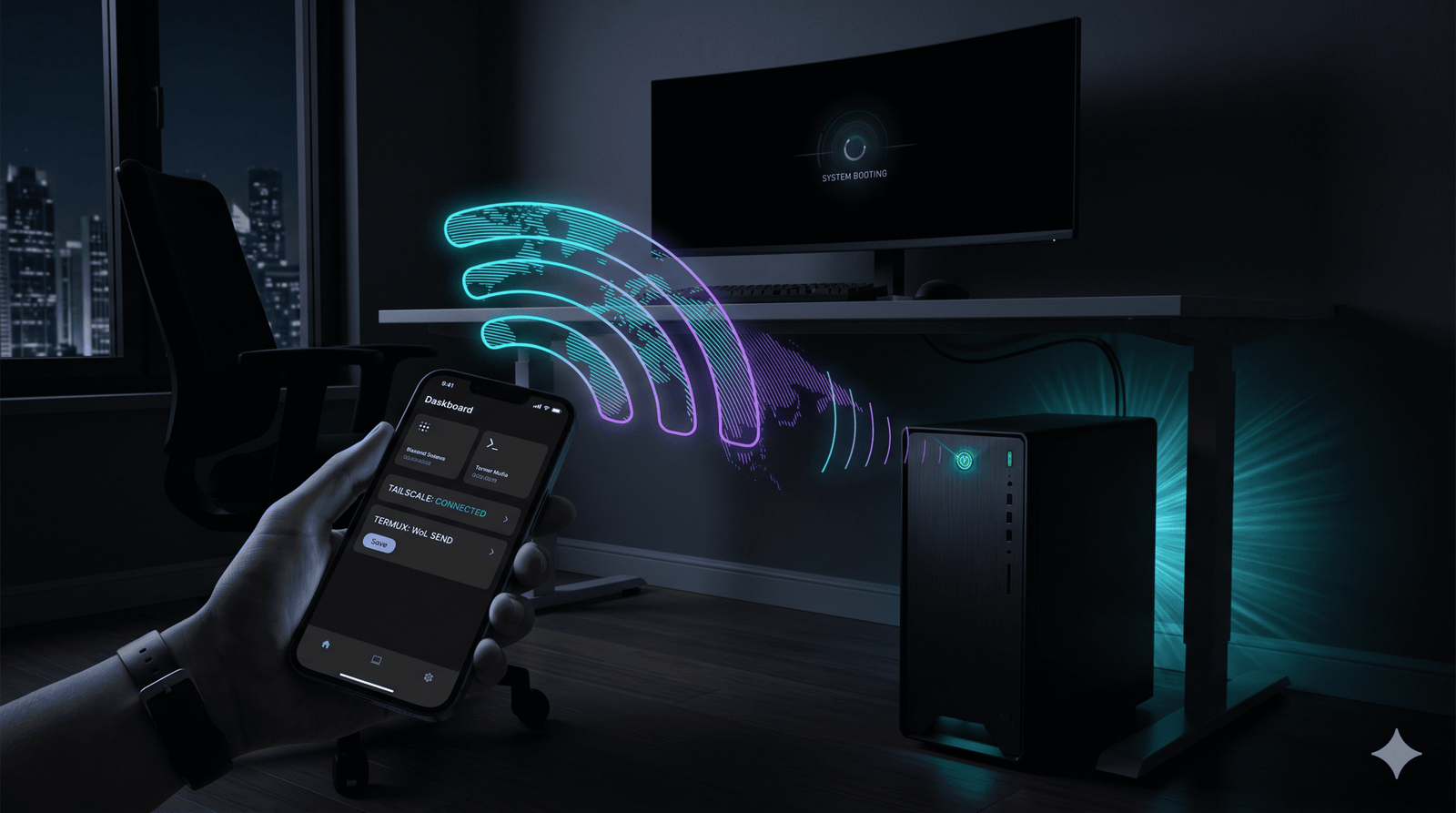
I needed to be able to access my machine remotely, but I didn’t want to leave a power-hungry desktop running 24/7 while I was gone. The solution? A highly resilient Wake-on-LAN (WoL) setup utilizing Tailscale, a spare Android phone running Termux, and a Wi-Fi smart plug for absolute, 360-degree redundancy.
If you travel often and need guaranteed access to your home rig without keeping it awake permanently, here is the exact architecture I use to make sure I never get locked out.
The Core Architecture
The goal is simple: keep the desktop powered off to save electricity, but maintain the ability to wake it up securely from anywhere in the world.
To achieve this, we need a “relay” device on the same local network as the desktop to send the WoL magic packet. Instead of buying a Raspberry Pi, I repurposed an Android phone. The backbone of this entire operation is Tailscale, a zero-config VPN that securely links all my devices into one private network (a Tailnet).
Here is how to set up the ultimate failsafe remote workflow.
Phase 1: Hardening the BIOS and Windows OS
If your motherboard doesn’t keep the Network Interface Card (NIC) powered during shutdown, no amount of magic packets will wake it up.
The BIOS Checkup:
- Enable Wake on LAN (PCI-E): This allows the motherboard to actively listen for incoming magic packets.
- Disable ErP / EuP Ready: This is an energy-saving standard that cuts all standby power to the ethernet port when the PC shuts down. It must be disabled for WoL to function.
- Restore on AC Power Loss: Set this to Power On. This is critical. If there’s a power grid outage and your desktop shuts off improperly, the motherboard’s WoL listening state breaks. This setting ensures that when electricity returns, the PC boots up automatically.
- Disable Fast Boot: Guarantee the full network stack initializes upon system shutdown.
The Windows Trap: Windows has a feature called “Fast Startup” that puts the kernel into a deep hibernation (S4) state rather than a true shutdown (S5). Most network adapters cannot wake a PC from S4.
- Go to Control Panel > Power Options and uncheck Turn on fast startup.
- In Device Manager, go to your Ethernet adapter properties. Under Power Management, ensure both Allow this device to wake the computer and Only allow a magic packet to wake the computer are checked.
Finally, ensure the Tailscale desktop app is set to Run unattended so the VPN connects the moment the machine boots, before you even log into Windows.
Phase 2: The Android Relay (Beating Battery Optimization)
Using an Android phone as a relay is brilliant because it has a built-in battery backup (perfect for power dips), but Android’s operating system is notoriously aggressive about killing background processes.
I run Termux on the phone to act as an SSH server. From my travel laptop, I can SSH into the phone’s Tailscale IP and trigger the WoL command to wake the desktop. But to make sure Termux survives a 10-day trip, we have to bypass Android’s deep sleep mechanisms:
- Always-On VPN: Set Tailscale to “Always-on” in the Android network settings.
- Unrestricted Battery: Both Tailscale and Termux need their battery profiles set to completely “Unrestricted.”
- The Wakelock: Inside Termux, running the
termux-wake-lockcommand holds the CPU awake, preventing the device from dropping the network connection.
The Display Trick (Blackr): Even with a wakelock, Android skins (like One UI or MIUI) will sometimes sever network connections when you press the physical power button to turn the screen off. To bypass this, I leave the phone plugged in and run an app called Blackr. It overlays a pure black screen on the OLED display—turning the pixels completely off to prevent burn-in—while logically tricking Android into thinking the screen is “on” and Termux is the active foreground app.
Phase 3: The 360-Degree Failsafe (The Wi-Fi Smart Plug)
Even with the perfect WoL setup, there is one nightmare scenario: what if the desktop turns on, but the operating system completely freezes? Or what if Tailscale crashes on the desktop node? WoL magic packets cannot fix a frozen OS.
This is where you implement 360-degree coverage by plugging the desktop directly into a Wi-Fi Smart Socket.
By connecting the smart plug to a separate cloud service (like Tuya or Smart Life), you gain an out-of-band management channel. If the desktop becomes unresponsive and you cannot SSH or RDP into it, you simply open the smart plug app on your phone and cut the physical power to the desktop.
Wait 10 seconds, and toggle the smart plug back on.
Because we explicitly configured the BIOS to Restore on AC Power Loss -> Power On, the motherboard detects the returning electricity and immediately forces a cold hardware boot. The OS loads fresh, Tailscale connects in unattended mode, and you have instantly regained access to your machine from halfway across the world.
Final Thoughts
This three-pronged approach—BIOS hardening, an Android Termux relay, and a smart socket failsafe—covers virtually every physical and software failure point. It allows me to travel with total peace of mind, knowing I can spin up my heavy development environment at a moment’s notice.
Have you tried setting up a remote development environment? Let me know what your architecture looks like in the comments!
Mahdi Hasan
Mahdi has over 11 years of experience in SEO, content writing, and content marketing. He has worked with over 100 business across industries as a content writer and SEO specialist with a proven track record in boosting organic traffic growth. He is the first Certified Professional Resume Writer (CPRW) from Bangladesh and a HubSpot certified inbound marketing professional. Now, busy dong AI automation for marketing processes and learning ComfyUI.